
Nine2Five
A Pro Posts the Play.
Every Account Buys It.
Nine2Five's pro finds reverse split plays. Our bot buys each one in every brokerage account you add, in seconds. You just tap Approve.
Open this link on your Mac or Windows computer.
Link copied. Open it on your Mac or Windows computer.
Most Macs from 2021 on have an Apple chip. Not sure? Apple menu, then About This Mac: Chip means Apple Chip, Processor means Intel.
Premium is the pro's alerts plus this bot. You buy it on Whop, the store Nine2Five uses for memberships, and it comes with the key that turns the bot on.
- Can Never Move or Withdraw Your Money
- Only Places Stock Buys and Sells
- Every Trade Waits for Your OK
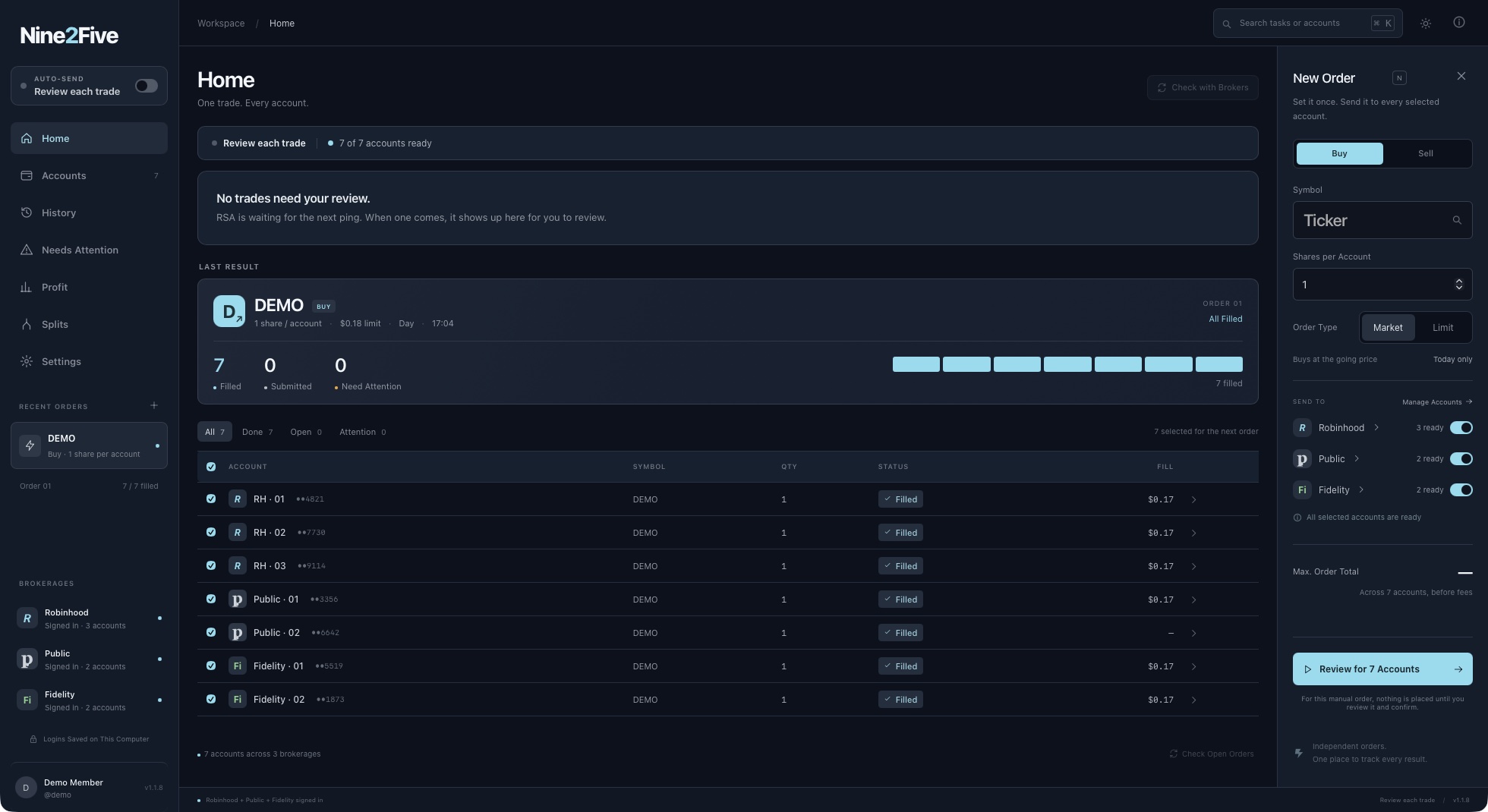
The Play Most Traders Miss
Reverse split plays open and close fast, and every account you add is another shot at the payout. Placing them by hand, one brokerage at a time, is how people miss the window.
Nine2Five's pro finds the plays. The bot buys them in every account at once.
What Our Bot Does
-
Every Account at Once
One order goes to every account you pick.
-
Optional Auto-Send
Off until you turn it on. Then it only trades within your limits.
-
Logins Stay on Your Computer
Your passwords only ever go to your brokerage.
-
Place Your Own Orders
Buy or sell any stock in all your accounts from one form.
Works With Ten Brokerages
- R
Robinhood
Sign in the way you always do
- P
Public
Sign in the way you always do
- F
Fennel
Sign in the way you always do
- Fi
Fidelity
Sign in the way you always do
- S
Schwab
Sign in the way you always do
Add Any of Them in Accounts
- So
SoFi
Sign in the way you always do
- W
Webull
Sign in the way you always do
- WT
WellsTrade
Sign in the way you always do
- T
TastyTrade
Uses TastyTrade's official connection
- A
Aries
Uses TradeStation's official connection
Your Money Stays Yours
- It Can't Move Money The bot has no way to transfer, withdraw or deposit. It only places stock buys and sells.
- You Approve Every Trade Each play waits for your OK. Auto-Send stays off until you turn it on, and even then it only trades within the max price and shares you set.
- Your Logins Stay on Your Computer They're saved on your own computer and go straight to your brokerage. Nine2Five never sees them.
- It Signs In Like You Do The bot uses your brokerage's own sign-in and places the same kind of order you would.
- Stop Any Time Close the app, or switch any account off in Accounts, and it does nothing.
How It Works
Download and Open
Pick your computer above. The bot opens like any other app. On Windows, a blue “Windows protected your PC” box is normal for new apps: press More info, then Run anyway.
Paste Your Key
Your key comes with Premium and turns the bot on. On Whop, open Orders, then Nine2Five Premium, copy the key and paste it into the bot.
Add Your Brokers
Go to Accounts and press Add on each brokerage. Sign in the way you always do.
Installation Help
Need a hand installing? Open the steps for your computer.
On a Mac
Three Steps
On a Mac
Three Steps
- Open the file you downloaded. Drag the bot's icon onto the Applications folder next to it.
- Open it. If your Mac says it can't check the app, open System Settings, then Privacy & Security, scroll down and press Open Anyway.
- If your Mac asks to let the bot find devices on local networks, either answer is fine.
On Windows
Three Steps
On Windows
Three Steps
- Open the setup file you downloaded. If a blue box pops up, press More info, then Run anyway.
- Press Next until it finishes. No admin password needed.
- The bot is now in your Start menu, and on your desktop if you ticked that box.